
Attendees
Refunds
This chapter describes how to issue refunds to attendees.
Orders
To refund a payment, you will need to go to the order on which the payment was made.
Navigate to the event page in your organiser account and click on the Orders tab. Here you will see a list of orders at your event:
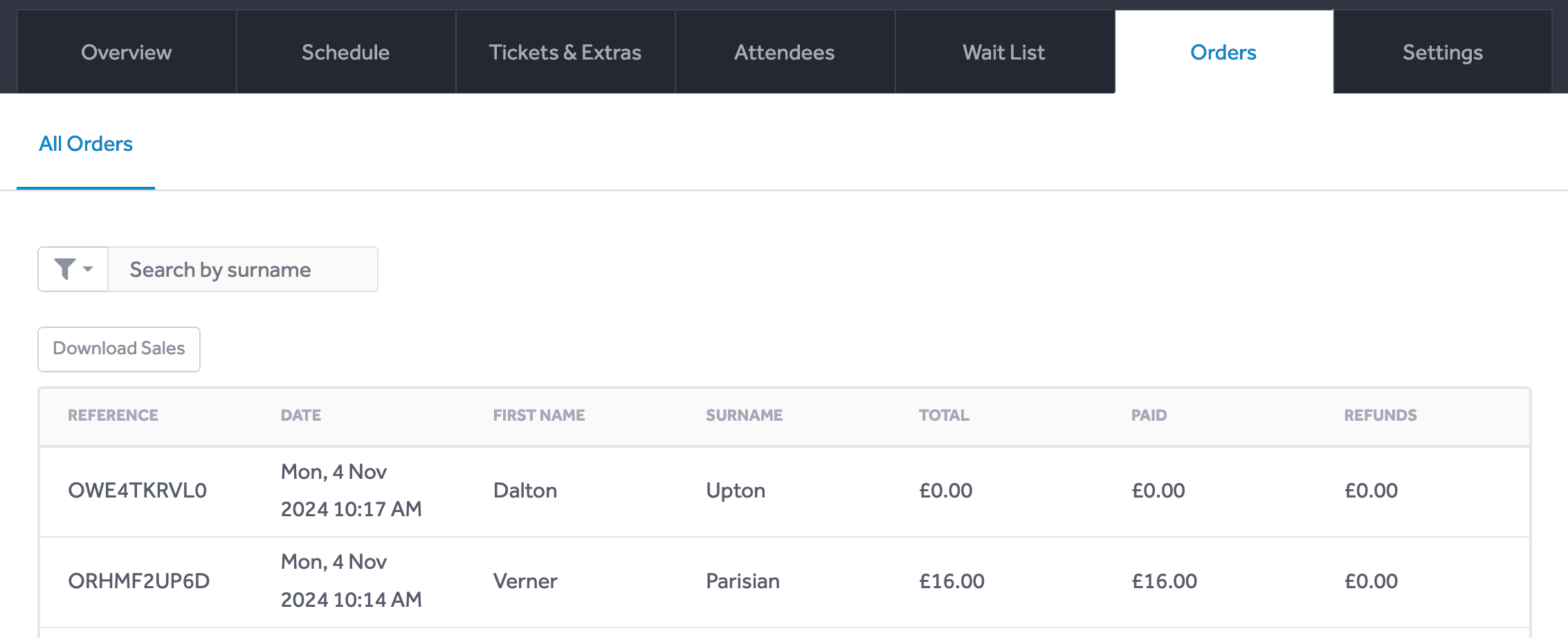
Click the row for the order you want to refund.
Alternatively, you can access the order via the attendee's page. Use the Invoice button on the top-right of their page.
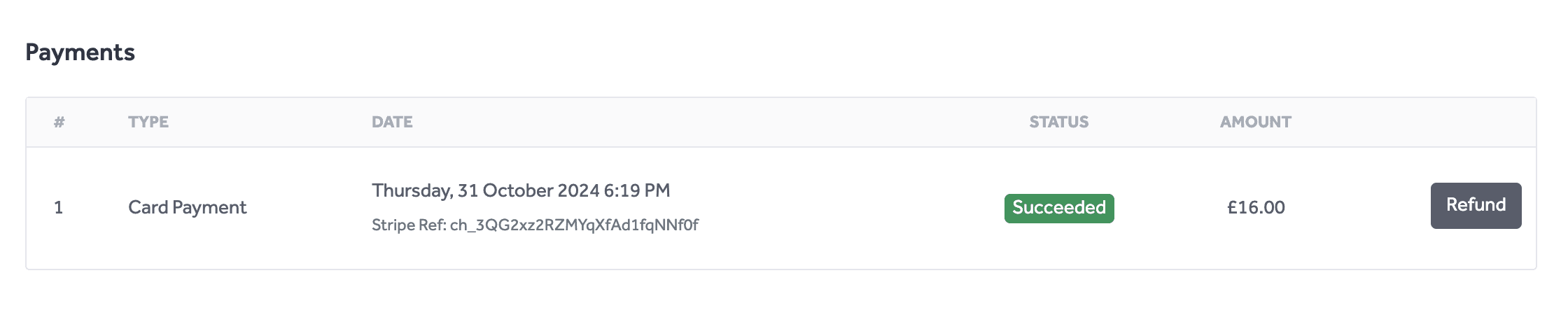
At the bottom of the order page is the Payments section. Card payments have a Refund button:
Issuing Refunds
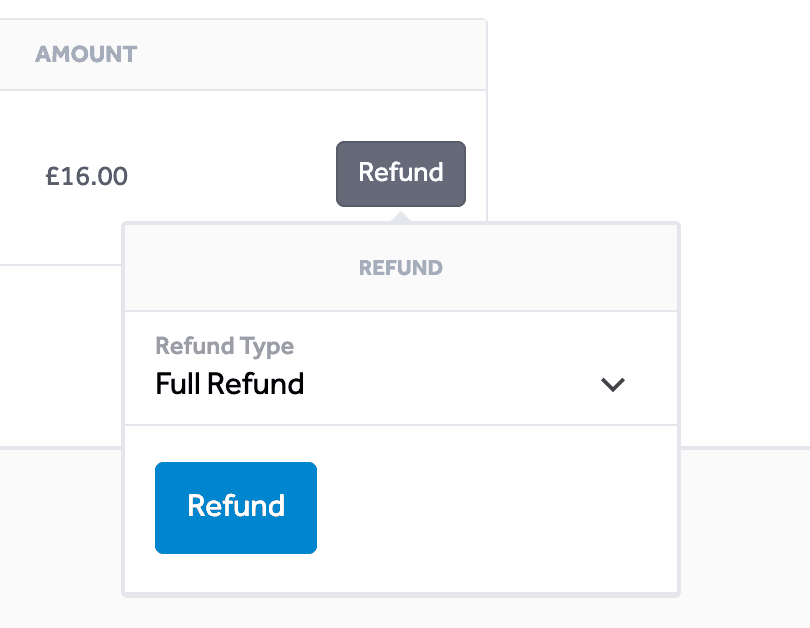
Full Refund
To return the entire amount that was charged to the customer's card, select Full Refund:
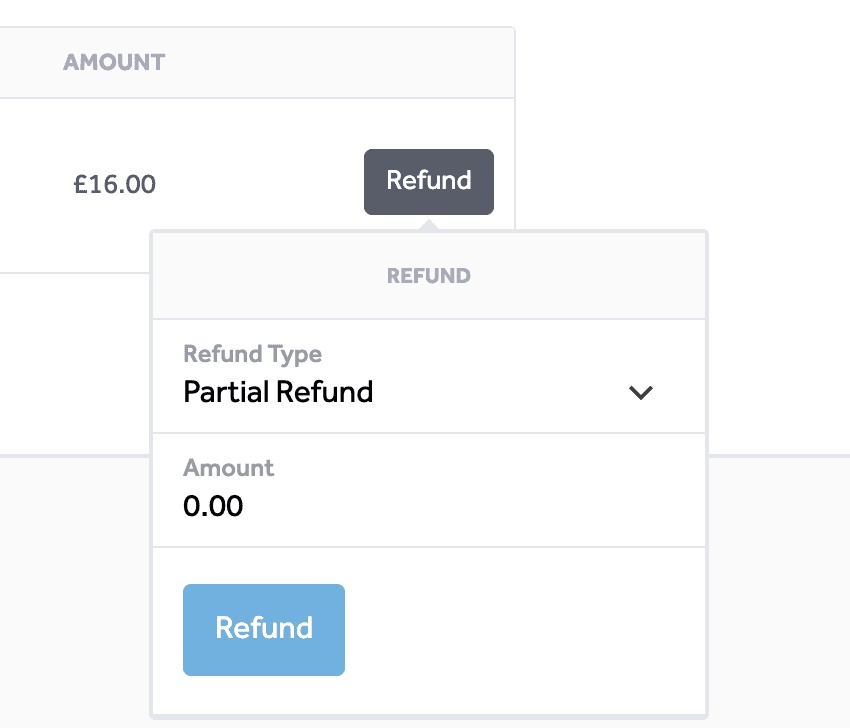
Partial Refund
If you want to issue part of the amount paid by the customer, change the dropdown to Partial Refund. Then enter the amount you want to refund:
How Long Does It Take?
Refunds can take up to 10 business days to appear in a customer's account. If needed, you can check that status of the refund via your Stripe Dashboard.
For more information, refer to the Stripe support documentation on refunds.
Fees
Stripe fees are no longer returned when you issue a refund.
DanceCloud ticket fees are refunded. If you issue a partial refund, the DanceCloud fee will be refunded proportionately to the amount refunded. So for example, if you refunded 60% of a payment, then 60% of the DanceCloud fee will be refunded.
Fees refunded by DanceCloud are returned to your Stripe account, not the customer. For example, if a customer was charged £21 for a £20 ticket and £1 fee. If you issue a full refund, the customer receives £21 from your Stripe account. You will then receive £1 from DanceCloud to your Stripe account.
It is also possible to refund payments directly from your Stripe dashboard. If you do this, the DanceCloud fee will not be refunded. We can only refund our fee if the refund is initiated through DanceCloud.
Cancellations
If you are issuing a refund due to a cancellation by an attendee, you will also need to mark their attendance as cancelled. See this previous chapter for how to do that.